In short
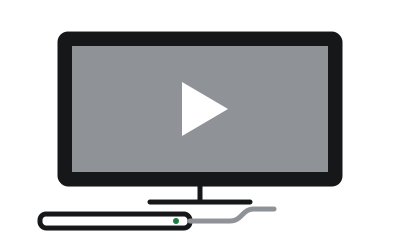
- Any Windows laptop from about 2013 on plays 1080p video comfortably. Connect it to the TV over HDMI and it becomes a media player for your own files, YouTube and internet radio.
- Your TV remote can't control it: PCs don't speak the HDMI control protocol. A phone app or a USB air-mouse remote fixes that.
- Streaming apps are the weak spot. Netflix in a browser tops out at 1080p and Disney+ is worse on Linux. Run a streaming stick alongside for those.
- Three software routes: keep Windows and add Kodi, install Linux Mint and add Kodi, or install LibreELEC, which is Kodi and nothing else.
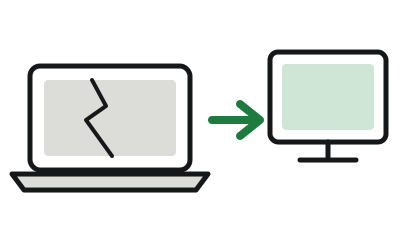
Somewhere in your house is a laptop that stopped being a laptop: cracked screen, dead hinge, or just retired. The parts that matter still work. This is the guide to putting it under the TV, including the two things enthusiastic guides leave out: the remote problem and the streaming-service problem.
What it's good for, and what it isn't
This build is excellent for your own stuff: the music collection, ripped DVDs, family videos, the photo archive, podcasts, YouTube and internet radio. That's most of what most people want, and an old laptop does it beautifully.
If your household's evening is mostly Netflix and Disney+, the laptop is the wrong tool for that part. Netflix in a browser on Linux or Windows tops out at 1080p, and 4K on Windows now requires Windows 11 and a 2017-or-newer processor, which rules out these machines. Disney+ in a Linux browser is reported at roughly DVD quality. These are rights-management rules, not performance problems, and no amount of tinkering changes a policy. A streaming stick next to the laptop handles the apps properly; the laptop handles everything the stick can't. Plenty of living rooms happily run both.
What you need
- A Windows laptop from roughly 2013 onward. Kodi's requirements are modest, and Intel graphics from that era decode 1080p video in hardware without effort. Don't expect 4K.
- An HDMI cable to the TV.
- A remote: your phone (free) or a USB air-mouse remote. See below.
- Somewhere with power near the TV, ideally with the laptop standing on its edge so the vents stay clear.
The shopping list
- Amazon Basics HDMI 2.0 cable, 6 ftLaptop to TV or monitor. Amazon
- Yatao W1 air-mouse remote with keyboardThe remote that actually works with a PC. Amazon
- OMOTON vertical laptop standKeeps a closed laptop cool and tidy. Amazon
- Fire TV Stick 4K PlusHandles the streaming apps properly. Amazon
Paid links. Prices change often, so we don't print them; the listing shows the current price. We earn a commission on purchases, at no cost to you.
The thing nobody warns you about: your TV remote won't work
TVs and set-top boxes control each other over HDMI using a protocol called CEC. Computers don't speak it; almost no PC graphics hardware supports CEC at all. So your TV remote cannot drive the laptop, and every "media PC" photo showing someone pointing a TV remote at a laptop is either using extra hardware or a stock photo.
The fixes are cheap and pleasant:
- Your phone, free. On Android, Kodi's official remote app is Kore. On iPhone, it's Official Kodi Remote. Both turn the phone into a proper remote with library browsing from the sofa. Enable "Allow remote control" in Kodi's settings first.
- An air-mouse remote. A small handheld with a USB dongle: wave to point, play/pause buttons, and a little keyboard on the back for typing search terms. Plug in the dongle and it works, no drivers. This is the one purchase worth making if the machine will be used by people who don't want to touch a phone app.
Our pick
Yatao W1 air-mouse remote with keyboard
A TV remote can't control a laptop, so you need one of these: point-to-move, play/pause buttons, and a small keyboard on the back. Plugs in and works with no setup.
See price on Amazon Paid link
Pick your software route
| Route | Best for | Trade-off |
|---|---|---|
| Keep Windows, install Kodi | Least effort. You already know Windows, and free ESU updates run to October 2027. | Windows does Windows things in the background: updates, notifications, restarts. |
| Linux Mint, install Kodi | Feels lighter on old hardware, keeps a browser handy, no deadline. | An afternoon to install. Run the hardware check first. |
| LibreELEC | A set-and-forget appliance. The laptop boots straight into your library, like a streaming box. | It is Kodi and nothing else: no desktop, no browser. LibreELEC still ships "Generic" and "Generic-legacy" builds for ordinary PCs. |
Kodi is free, currently version 21 with 22 in testing. If your files live on another machine, or you want to browse the library from phones and tablets too, add Jellyfin (also free, now at version 12) as the library server; it and Kodi are happy on the same laptop. That's the path to a proper home server later.
The build
- Check what still works. Plug in the HDMI cable, boot, and press Windows+P → "Second screen only." If the desktop appears on the TV, you're in business. One caveat for dead screens: the BIOS and boot menus usually don't appear on the TV, because most laptops only light up the HDMI port once the operating system loads. If Windows still boots, that doesn't matter. If you planned a fresh operating system install on a completely dead screen, you may need a borrowed monitor, a friend's hands, or a one-time screen fix for the install step. The broken-screen guide covers the options.
- Install your chosen route from the table above.
- Install Kodi and point it at your files. Add your video and music folders, let it fetch artwork and descriptions, and enjoy the moment your dusty folder of files turns into something that looks like a streaming service, except it's yours. An external hard drive plugged into the laptop is the simplest place for a big library.
- Teach it to run with the lid closed. Windows: Control Panel → Power Options → "Choose what closing the lid does" → When I close the lid, Plugged in: Do nothing. Linux Mint: Power Management has the same option. Zorin and other GNOME systems keep running with the lid closed whenever an external screen is attached, which is the behavior you want.
- Set up the remote: the phone app, or the air mouse's dongle. From here on the laptop is furniture.
- Look after the hardware. Closed-lid running traps heat, so stand it on its edge with the vents clear. And a laptop plugged in around the clock is hard on its battery: if the maker's software offers a charge limit (Lenovo Vantage, Dell Power Manager, HP's Battery Health Manager in the BIOS, MyASUS), set it to around 80%. If the case ever starts to bulge, that's a swollen battery; stop using it and have the battery removed.
The electricity question
An old laptop idles at roughly 15–30 watts; a streaming stick sips 2–5. At the current US average of about 18 cents per kilowatt-hour, a laptop left on around the clock costs in the region of $25–50 a year, and one switched on for evening films costs a fraction of that. A useful number to know, not a reason to skip the project.
Where this goes next
Once there's an always-on machine under the TV, people tend to discover the rest: Jellyfin serving the whole house, the laptop doubling as the family backup target, internet radio in the kitchen. That's the home server guide, and the "broken" laptop quietly becomes the most useful computer in the house.
Product links on this page are affiliate links. If you buy through one, we earn a small commission at no cost to you, and the retailer's cookies apply once you're on their site (we run none). We link only to things that fit the advice above, and we never link to replacement computers as a fix for a working one.