In short
- Copy what can't be replaced: documents, photos, the desktop, downloads, email archives, browser bookmarks and passwords.
- An external drive is the right tool. Cloud storage is a fine second copy, not a substitute, especially before you wipe a machine.
- Windows' built-in File History does the job for ongoing backups. For a one-off before a big change, a plain copy of your user folder is enough.
- A backup you haven't opened isn't a backup. Plug the drive into another machine and check a few files.
You are about to replace a drive, install Linux, or upgrade Windows. All three go fine almost every time. This page exists for the other times, and it takes twenty minutes.
What to back up
Everything that can't be downloaded again. On a Windows PC that means your user folder, plus a few things that live outside it:
- Documents, Pictures, Videos, Music, Desktop, Downloads. All under
C:\Users\YourName. Downloads is the one people forget and then miss. - Browser bookmarks and passwords. If you're signed into Chrome, Edge or Firefox they're already synced; check by signing in on your phone. If not, export them: every browser has an export option under Bookmarks and under Passwords.
- Email. Webmail (Gmail, Outlook.com) lives on the server, nothing to do. Old Outlook desktop archives (
.pstfiles) need copying: search your drive for*.pst. - Anything a program keeps somewhere odd: game saves, accounting software data, a photo editor's catalog. If you rely on a program, open its settings and find where it stores data.
- License keys for paid software. Screenshot them or note them down.
Pick a drive
An external hard drive is the right tool for this. It's cheap per terabyte, big enough for a whole household, and slow doesn't matter for a copy that runs while you make dinner. Check how much you need first: right-click your user folder → Properties → Size, and buy a drive at least twice that.
| Product | Best for | |
|---|---|---|
| WD Elements 2TB portable hard drive | Household backups, media libraries | Amazon |
| Seagate Portable 2TB external hard drive | Same job as the WD; pick by price | Amazon |
| Samsung T7 1TB portable SSD | People who carry their backup around | Amazon |
Paid links. Prices aren't shown here because they change often; the listing has today's price.
Cloud storage (OneDrive, Google Drive, iCloud) makes a fine second copy and is worth having for the things that would hurt most. But before wiping a machine, you want a drive in your hand that you've checked yourself, not a sync that might still be uploading.
The one-off backup before a big change
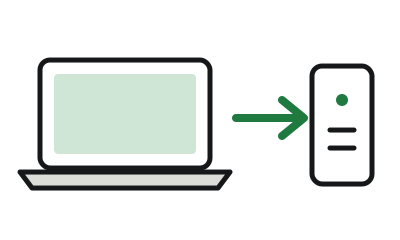
- Plug in the drive and open it in File Explorer. Make a folder named for the PC and today's date.
- Copy your user folder. Open
C:\Users, drag your folder onto the external drive. Windows will complain about a few system files it can't copy; click Skip. This is the slow part; a few hundred gigabytes over USB takes an hour or two. - Copy the stragglers: the browser exports, the
.pstfiles, anything from the list above that lives outside your user folder. - Test it. Open the drive on a different computer if you have one, or at least open a dozen random files from the copy: a photo, a spreadsheet, a video. A backup you haven't opened isn't a backup.
- Unplug the drive and put it somewhere away from the PC until the job is done. A drive that's still plugged in during a botched reinstall is a drive at risk.
The ongoing backup for a PC you're keeping
If the machine is staying on Windows 10 with ESU, turn on File History: Settings → Update & Security → Backup → Add a drive. Leave the external drive plugged in and Windows keeps versioned copies of your user folders automatically. It's been in Windows for a decade and it works. Once a month, open it and check it's still running; it does quietly stop if the drive fills up.
On a Mac the equivalent is Time Machine. On Linux Mint it's Timeshift for the system plus Déjà Dup for your files; the Mint guide covers setting them up.
After an SSD swap: reuse the old drive
If you've just replaced a laptop hard drive with an SSD, don't throw the old drive away. A cheap USB enclosure turns it into an external backup drive with all your old files still on it. Wipe it and use it for File History.
Drive enclosure
UGREEN 2.5" USB 3.0 drive enclosure
Turns the hard drive you just removed into a portable backup drive. Nothing gets thrown away.
See price on Amazon Paid link
One more thing to write down
If the PC uses BitLocker (many Windows 10 Pro machines do, and some Home ones), save the recovery key from account.microsoft.com/devices/recoverykey before you change the drive or the boot settings. Without it, an encrypted drive in a USB enclosure is a very well-protected brick.
Product links on this page are affiliate links. If you buy through one, we earn a small commission at no cost to you, and the retailer's cookies apply once you're on their site (we run none). We link only to things that fit the advice above, and we never link to replacement computers as a fix for a working one.